Using the web app
The screenshots on this page come from a test environment. The numbers in them are illustrative, not real predictions.
New here? The quickstart runs a first screen for a few cents. This page covers each part of the web app in turn.
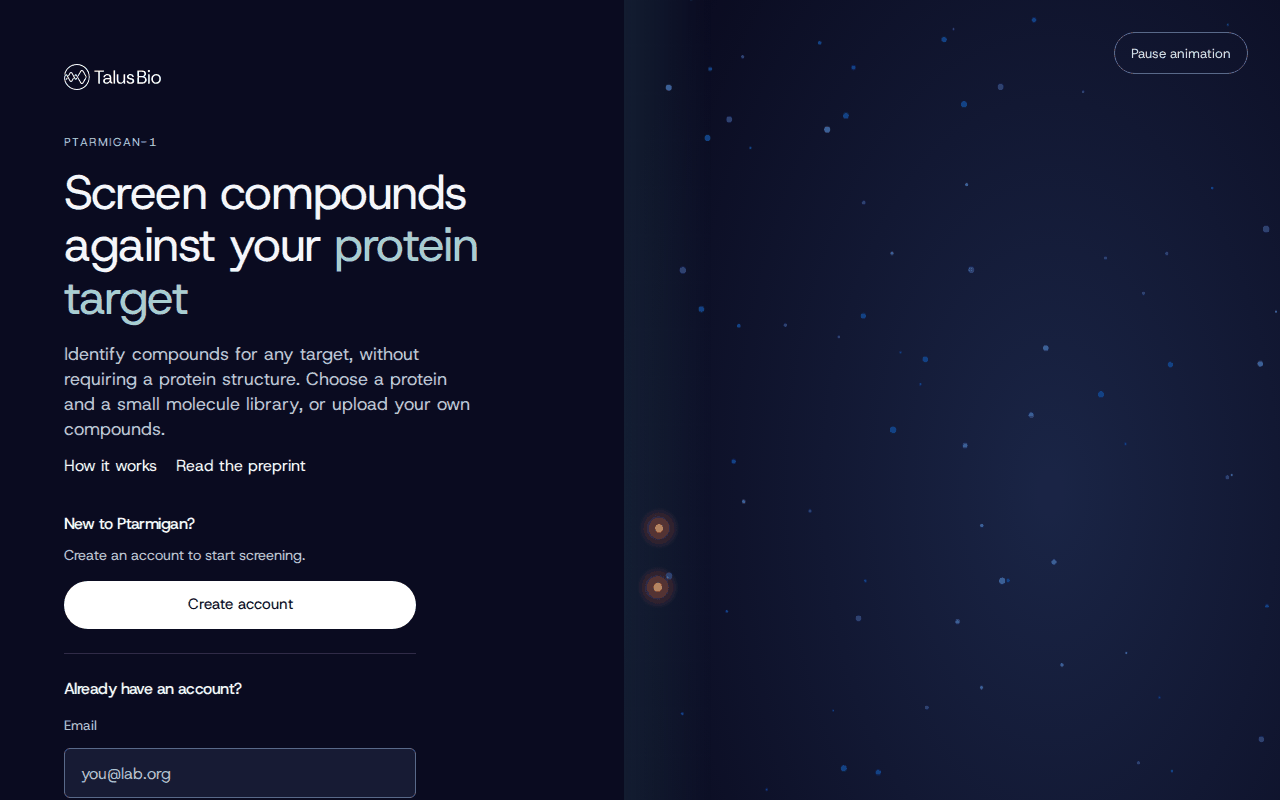
Sign up
Create an account at https://ptarmigan.app/signup with your name, an email and a password, or sign in with Google. A password account confirms its email with a code before the first sign-in. If we don't have your name, the app asks for it once after you sign in; change it later on your profile. A new account starts with $250 of promotional funds.
Balance and funds
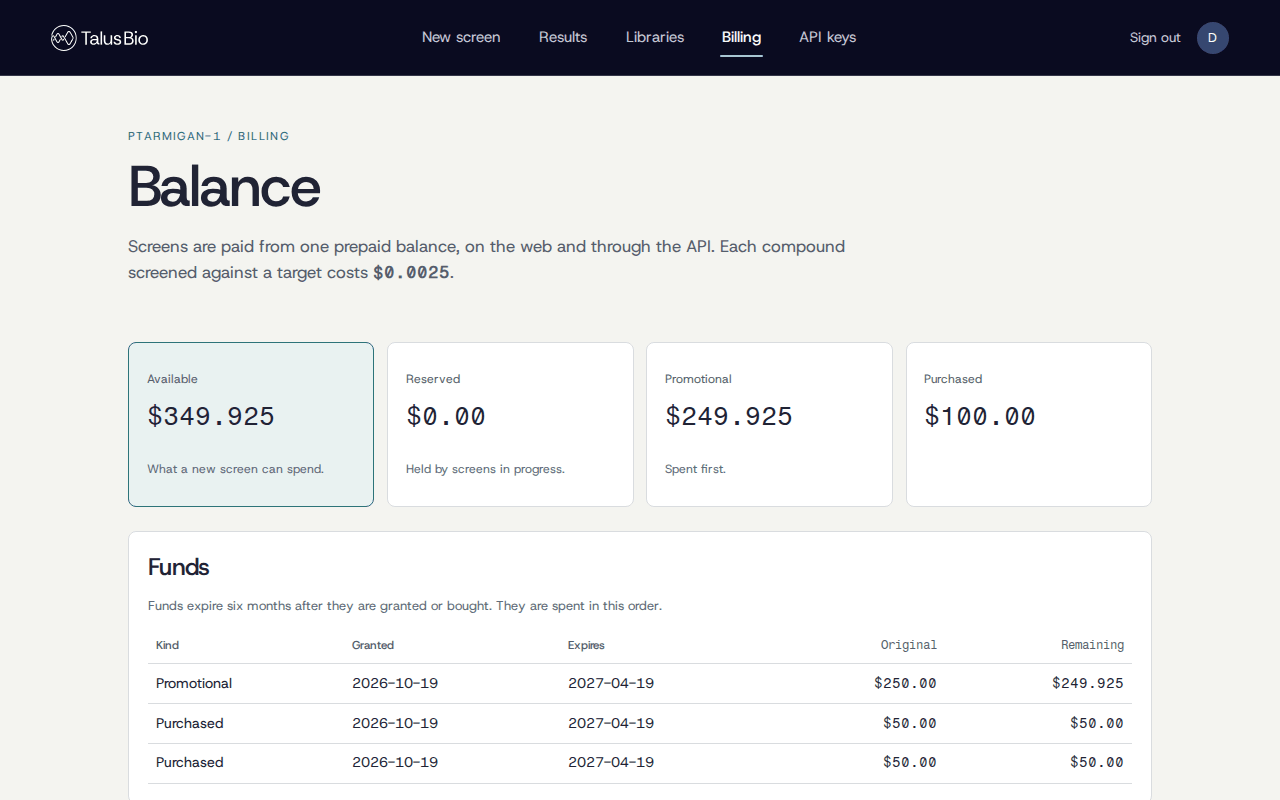
What screens cost and what is free is on the pricing page. Billing shows what you can spend:
- Available: what a new screen can spend.
- Reserved: held by screens that are queued or running. A screen that fails or is cancelled returns its reservation to your balance.
- Promotional and Purchased: the funds behind the balance, each with its expiry date. Promotional funds are spent first.
To add funds, enter an amount (at least $10) under Add funds and continue to payment. Purchases are capped at $25,000 per account in total; for more, email us at [email protected] about a partnership.
Run a screen
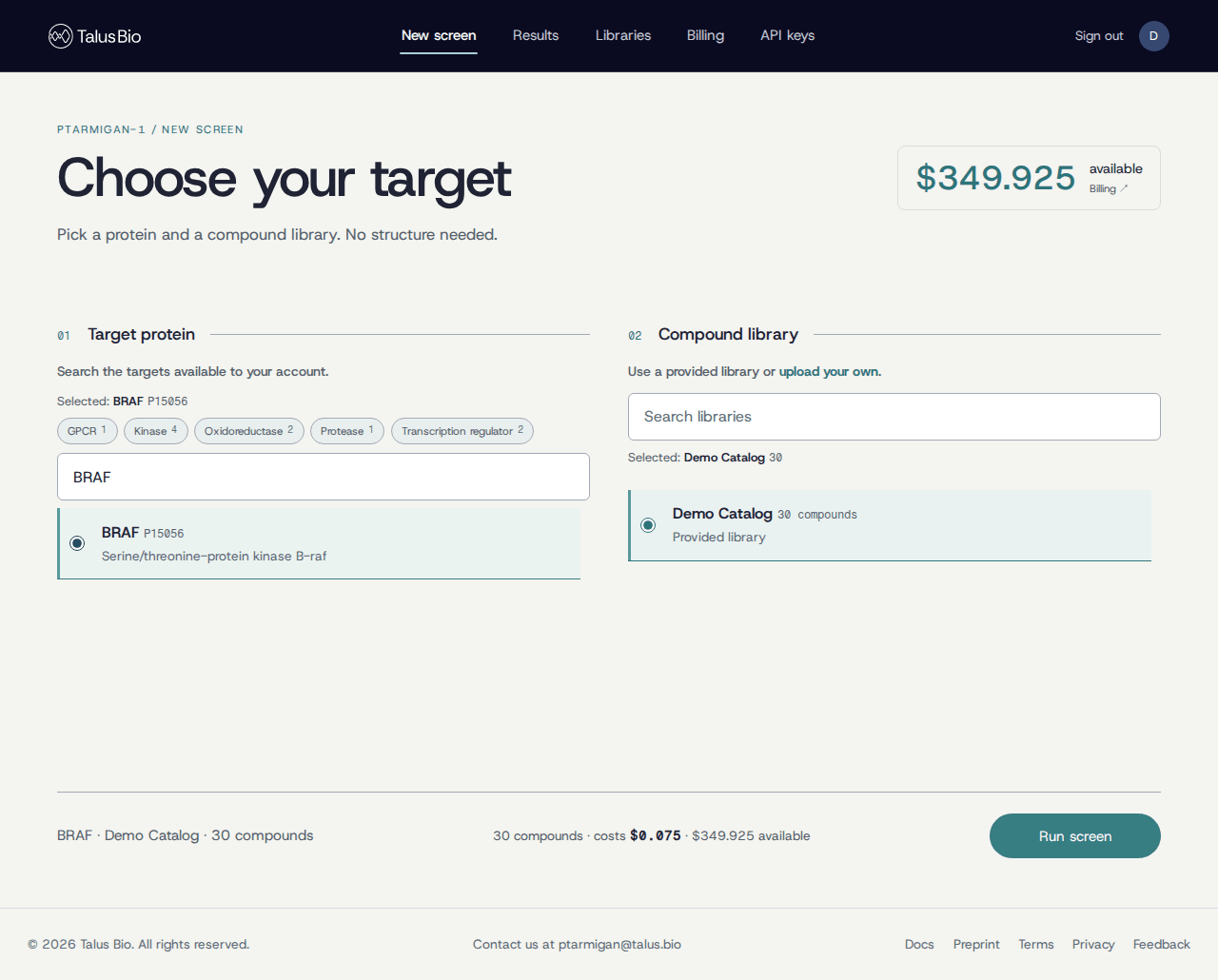
Open New screen.
- Choose your target. You can choose only from the human proteins Ptarmigan-1 provides; adding your own protein is not supported yet. Search by gene, name or UniProt accession. The category filters, such as Kinase or GPCR, narrow the list: with several selected, a protein in any of them is shown. A search then narrows the filtered list further.
- Choose a compound library. Pick a provided library or one you uploaded. You can't pick a library that is still being prepared.
- Check the estimate under the form: the number of compounds, what the screen will cost, and what you have available.
- Run screen.
The screen is queued, then runs; you can leave the page and come back. A screen that hasn't started yet can be cancelled at no charge.
Results
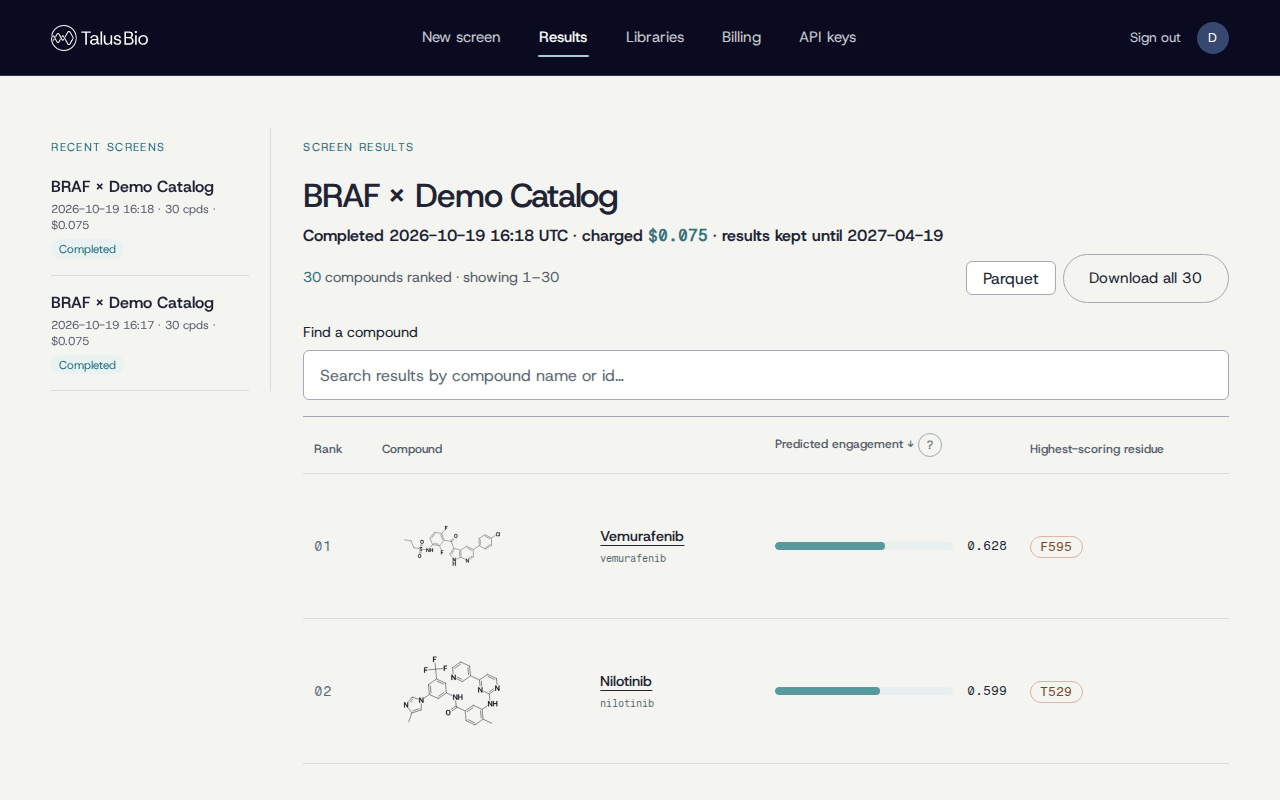
When the screen completes, its results page lists every compound, ranked by predicted engagement:
- Rank, the compound's structure and name.
- Predicted engagement, from 0 to 1. Compounds are listed from highest to lowest predicted engagement.
- Highest-scoring residue: the residue of the target the compound scored
best against, written as its amino acid and its position in the protein's
sequence.
C145is the cysteine at position 145.
The header shows what the screen was charged and until when its results are available. Use Find a compound to search by name or id. Pick Parquet or CSV beside Download all to export the rankings for every compound in the library. Earlier screens are listed under Recent screens. A completed screen's results stay available in the app for 6 months; download them to keep them for longer.
A compound against the target
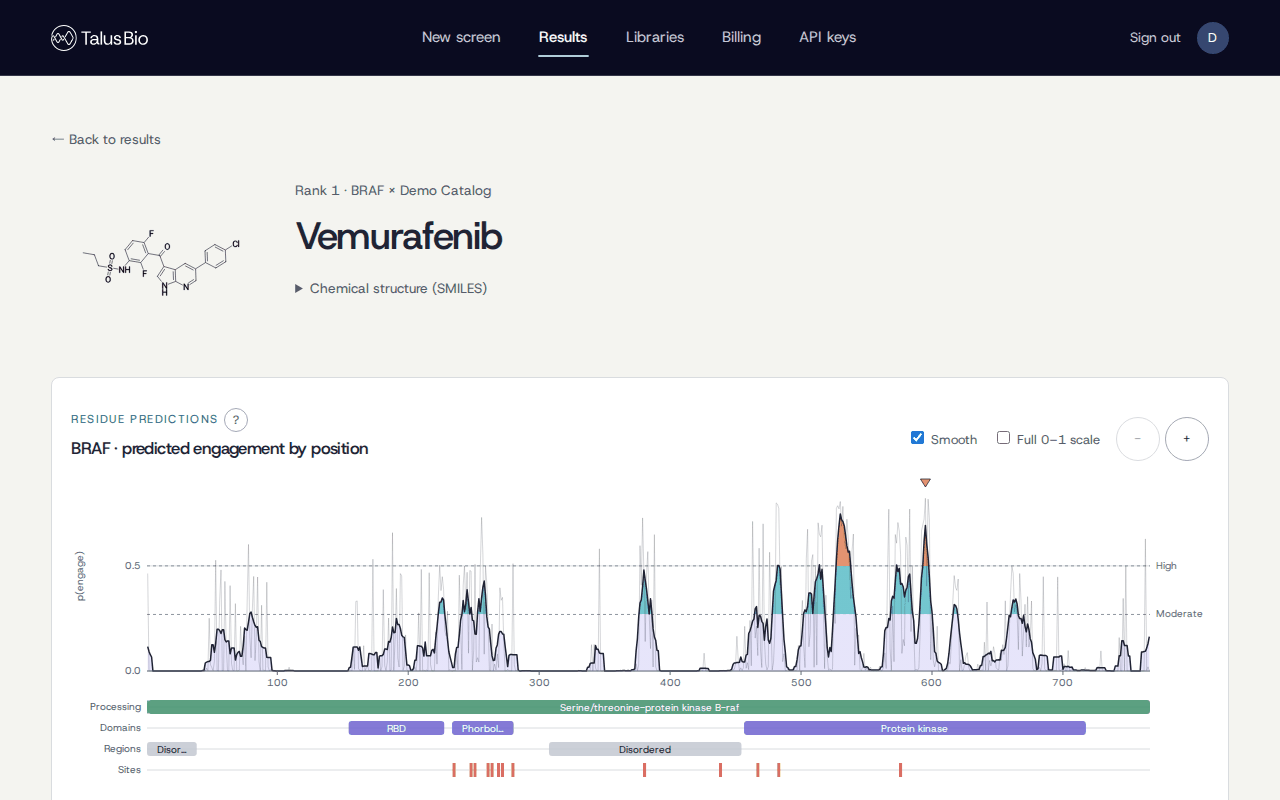
Select a compound in the results to open its page:
- Residue predictions: predicted engagement at each residue along the target's sequence. Hover a residue to highlight it on the structure; select one to pin it. A residue marked not scored has no prediction: for some long proteins only part of the sequence is processed, and this is indicated in the target list on New screen ("Partial sequence: 1200 / 2000 residues scored").
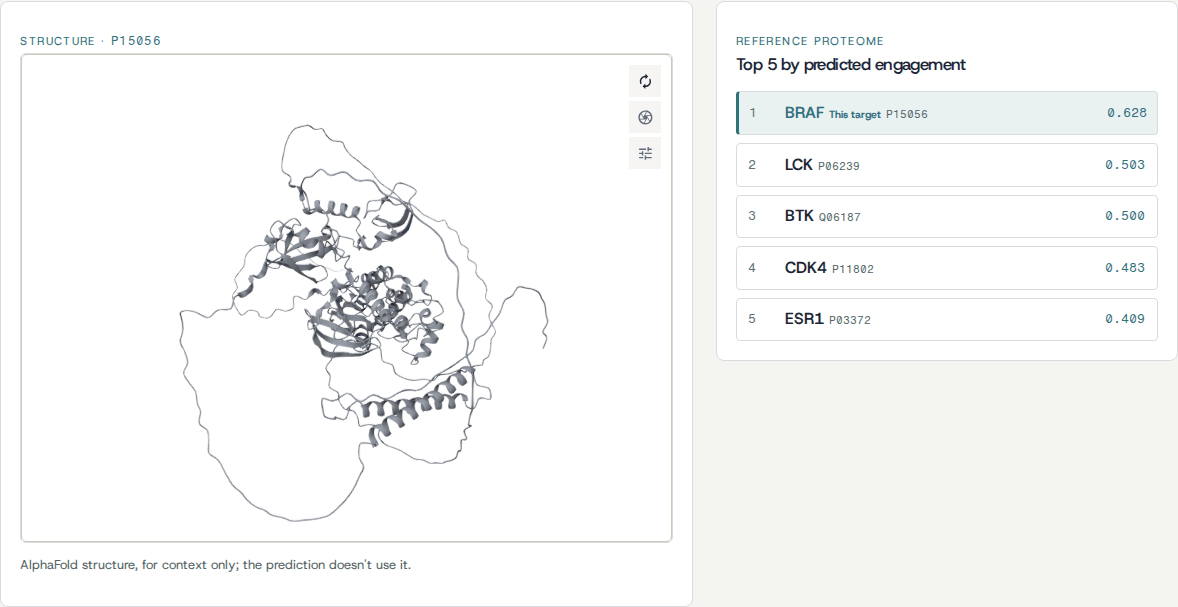
- Structure: the target's predicted structure from AlphaFold, for visualization purposes only. The prediction doesn't use it.
- Reference proteome: the five human proteins this compound is most likely to engage, searched across every protein in the reference proteome and ranked by predicted engagement. The screened target appears when it ranks among the five. Use the list to see which other proteins the compound may engage besides your target; see Reading the results.
Libraries
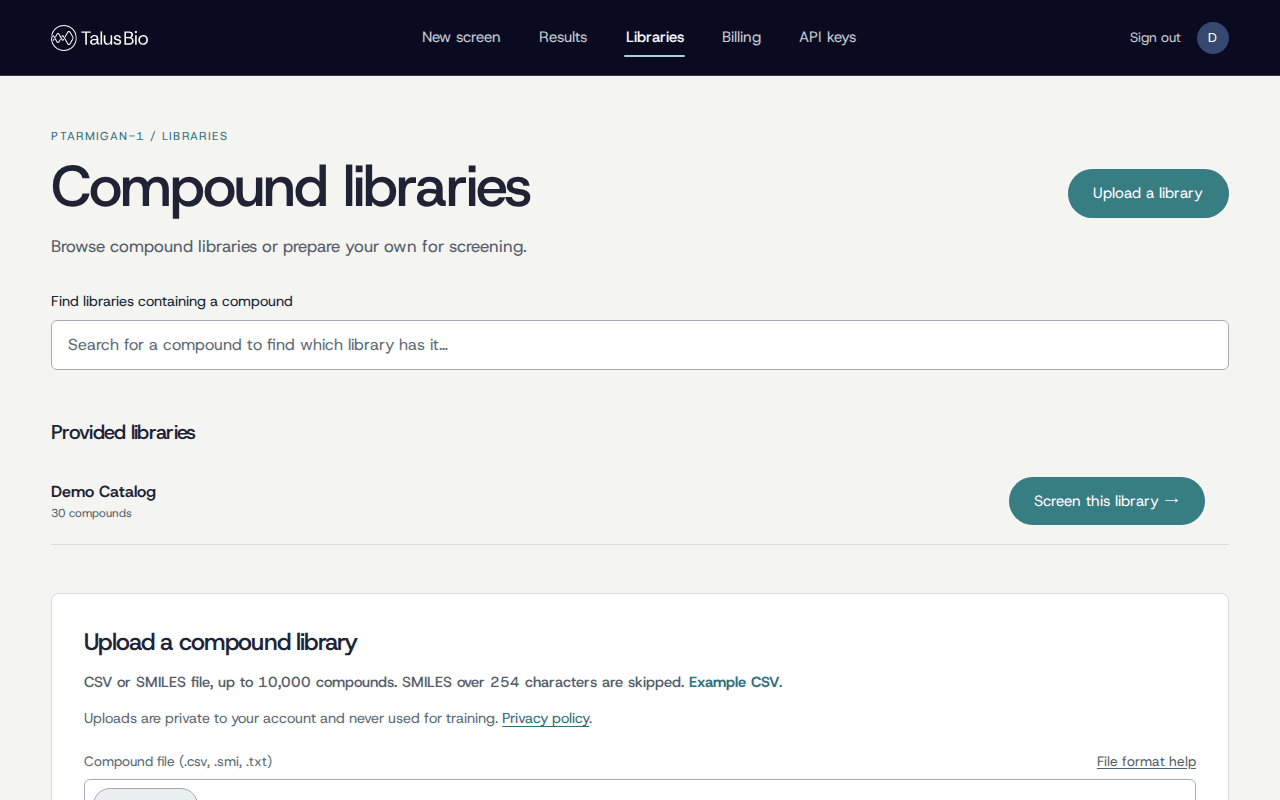
Libraries lists the provided libraries and your uploads. To screen your own
compounds, choose Upload a library and pick a .csv, .smi or .txt file;
see Library files for the format, which rows are skipped,
and how compounds are standardized. The upload continues past a skipped row,
and the confirmation after you upload says how many rows were skipped. An
upload is prepared before it can be screened, which can take a few minutes for
a large file.
You can rename or delete your uploads.
API keys
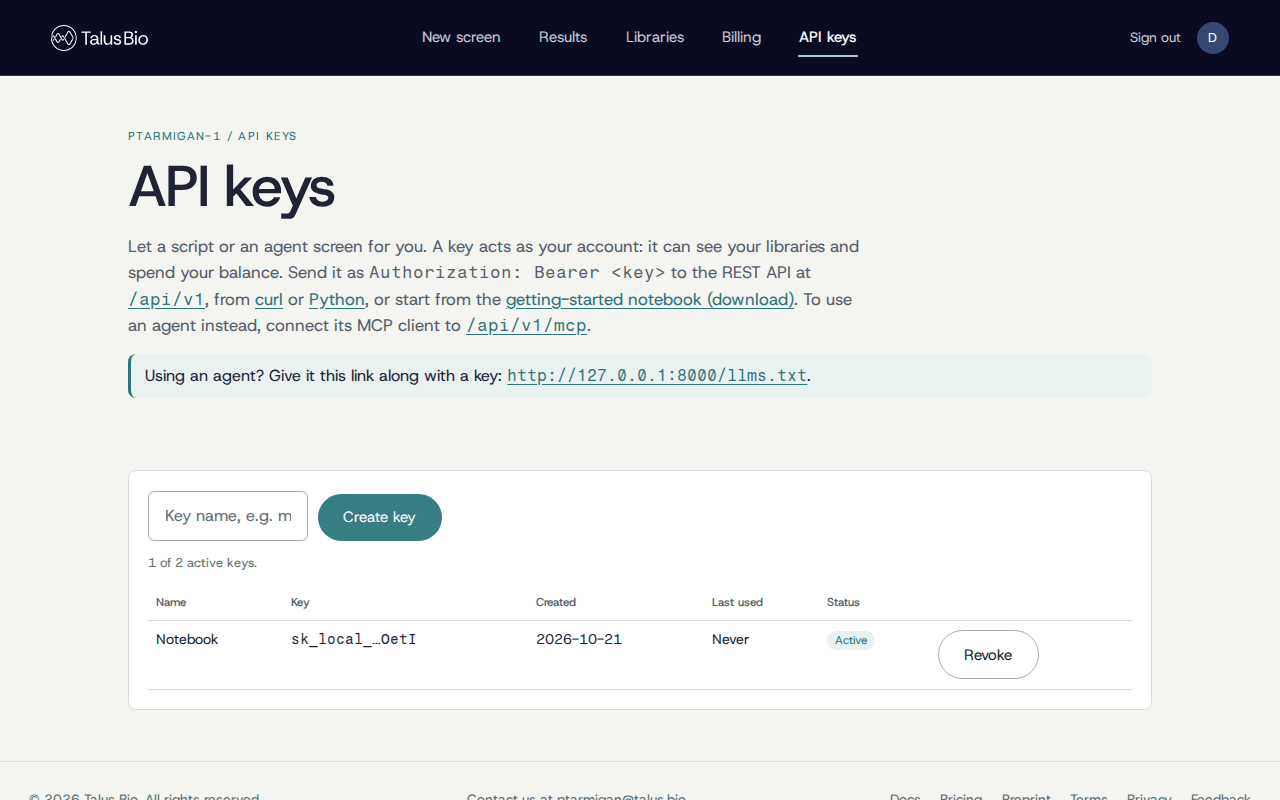
API keys creates keys for scripts and agents. A key acts as your account: it can see your libraries and spend your balance. A new key appears only once, right after you create it. It is hidden until you choose Show key, and Copy key copies it without showing it.
Treat a key like a password. Keep it in an environment variable or a password manager, never in code, notebooks or messages you share. If a key may have leaked, revoke it on the API keys page straight away and create a new one, and revoke any key you no longer use. See Using an agent, REST with curl and Python.